

Want to transfer photos from an SD card to iPhone without a laptop? You can. Plug a card reader that fits your iPhone's port into the phone, insert the memory card, and open the Files app or the Photos app. That's it. The only thing to get right is the plug: iPhone 14 and older use Lightning, iPhone 15 and later use USB-C. This guide is for camera, dashcam, drone and CCTV owners who want their files on the phone fast.
Below are the exact steps, the card formats iPhone can read, the problems people run into most, and how to copy files back onto the card.
First, Check Your iPhone's Port
This decides which reader you need, so do it before anything else.
- Lightning: the thin, flat connector on iPhone 14 and earlier models.
- USB-C: the oval connector on iPhone 15 and later. It's the same shape as most Android phones and new laptops.
Not sure? Look at your charging cable. A Lightning plug won't go into a USB-C iPhone, and the other way round. No adapter magic fixes that cleanly, so just buy the right one.
Card Readers That Work With iPhone
These are the readers we stock that suit iPhones, with our prices at the time of writing:
| Reader | Plug(s) | Card slots | Best for | Our price |
|---|---|---|---|---|
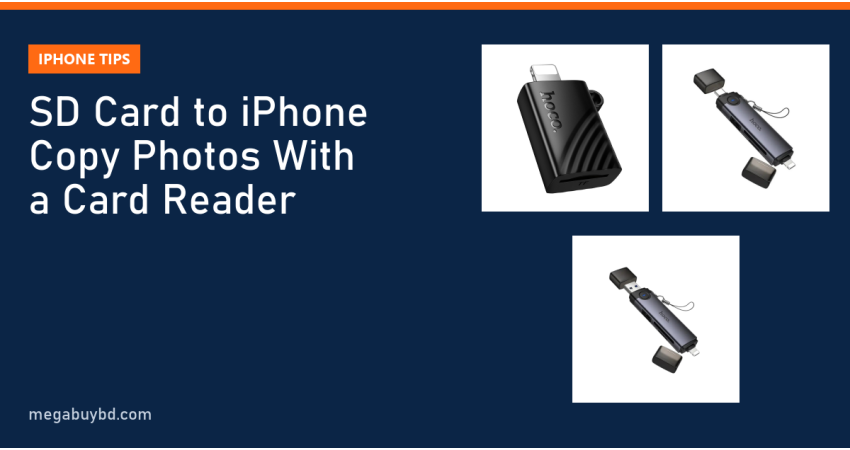
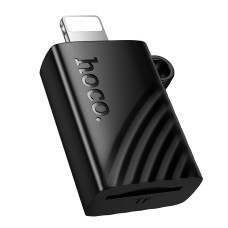
| Hoco HB53 Lightning | Lightning | microSD (up to 1TB) | Lightning iPhone, dashcam or drone cards | 425 Tk |
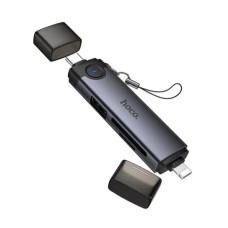
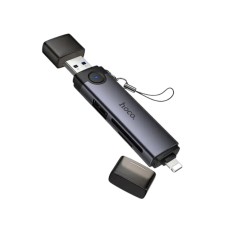
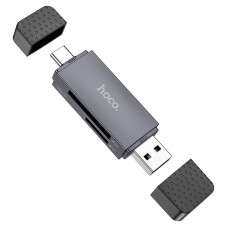
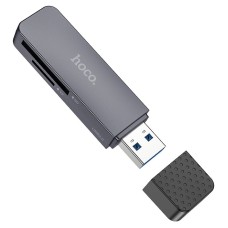
| Hoco HB56A Victory | Lightning + USB-A | SD + microSD, plus a USB-A socket | Lightning iPhone plus an older PC | 760 Tk |
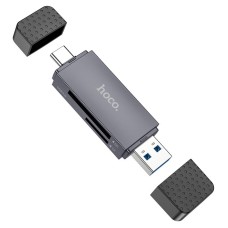
| Hoco HB56B Victory | Lightning + USB-C | SD + microSD, plus a USB-A socket | Lightning iPhone plus a USB-C laptop or Android phone | 760 Tk |
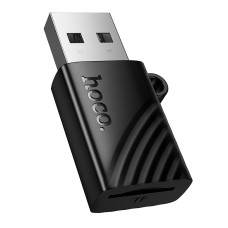
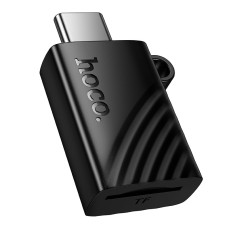
| Hoco HB53 Type-C | USB-C | microSD (up to 1TB) | iPhone 15 and later with microSD cards | 350 Tk |
Prices change with new stock, so the product page always shows the current one.
For Lightning iPhones
Only microSD cards? The Hoco HB53 Lightning card reader is tiny, 4 grams, and Hoco lists it for the Files app with no extra app. Using a camera with a full-size SD card? Then you need SD and microSD slots, which means the Hoco HB56A or the Hoco HB56B. Pick by your other device: HB56A if your computer has the flat USB-A port, HB56B if it's USB-C.
For USB-C iPhones (iPhone 15 and later)
The Hoco HB53 Type-C fits USB-C iPhones and reads microSD. For a full-size SD card on a USB-C iPhone, our dual-slot USB-C readers (the HB45 Dual and HB39) may well work, but Hoco doesn't list iPhone support for them. Same with the USB-C end of the HB56B. So message us with your iPhone model before ordering one of those for an iPhone. We'd rather tell you honestly than guess.
How to Transfer Photos From SD Card to iPhone: Step by Step
There are two ways. The Files app works with any card your iPhone can read. The Photos app import is quicker for camera cards, but it's pickier.
Method 1: The Files app (works almost every time)
- Put the memory card into the reader, then plug the reader into the iPhone.
- Open the Files app and tap Browse.
- Under Locations, tap the card's name. (Don't see Locations? Tap Browse again.)
- Camera photos are usually in a folder called DCIM. Open it.
- Tap Select (on some iOS versions it sits inside the ⋯ menu), choose the photos, then tap the Share button and pick Save Images. They go straight into your Photos library.
Want to keep the originals as files, not in Photos? Use Copy or Move instead and drop them into a folder in "On My iPhone".
Method 2: Import in the Photos app
- Plug in the reader with the card inside.
- Open Photos. On iOS 17 and older, an Import tab usually appears by itself. On iOS 18, go to Collections, scroll to the Devices section and tap the card. Menu names shift a little between iOS versions, so on newer iOS look for that same Devices section.
- Tap Import All, or select a few shots and tap Import.
- When it finishes, iPhone asks whether to keep or delete them on the card. Choose Keep unless you've backed them up elsewhere.
Two things to know. Apple says the Photos import only handles content captured by a digital camera, and files that were renamed, edited or copied onto the card later might not show. Apple also writes its steps for its own adapters. With a third-party reader, if the Devices section doesn't appear, just use the Files method above. Apple's own guide is here: Apple support: importing photos to iPhone from a camera or SD card.
Card Formats iPhone Can Read
Apple lists these formats for external storage on iPhone: exFAT, FAT32, FAT, APFS (including encrypted) and macOS Extended (HFS+). The card also needs a single data partition.
Good news: cameras, dashcams and phones format SD cards as FAT32 (usually 32GB and smaller) or exFAT (64GB and bigger). So a camera card normally just works.
NTFS is not on Apple's list. That's the one to watch, because some people format cards on a Windows PC and pick NTFS without thinking. If the iPhone can't open the card, or files show but won't copy onto it, back the card up on a PC and reformat it as exFAT. Better still, format it back in the camera it lives in, so the camera's happy too.
Common Problems and Fixes
The card doesn't show up in Files
- Pull the reader out, wait a few seconds, plug it back in firmly. Phone cases sometimes stop the plug going all the way in.
- Reseat the card. microSD cards love to sit half a millimetre short of the click.
- Update iOS. Old versions before iOS 13 can't read external storage this way.
- Test the card on a computer. If the computer can't read it either, the problem is the card, not the reader or the iPhone.
"Accessory not supported" message
Clean the iPhone's port first. Pocket lint packed into a Lightning or USB-C port is the most common cause we see, and a wooden toothpick (gently, phone off) usually sorts it. Then restart the phone and try again. If the message keeps coming back with a clean port and an updated iPhone, contact us with your iPhone model and the reader you bought.
Power problems
Card readers draw very little power, so this is rare with a card alone. It comes up with the USB-A socket on the HB56A and HB56B. A pen drive is usually fine, but Apple notes external hard drives often need their own power with iPhone. A bus-powered hard drive on that socket may simply not start.
Videos copy slowly
That's mostly the port. Lightning runs at USB 2.0 speed, and Apple lists USB 3 speeds only for some Pro models (iPhone 15 Pro and 16 Pro in its adapter guide). The HB53 readers are USB 2.0 class too. Photos fly across. A full card of 4K video? Make a cup of tea.
Some photos won't open on the iPhone
RAW files from some cameras, or odd video formats, may copy but not preview. Apple says files in formats iOS can't handle can still go to a computer later. Shoot RAW+JPEG if you want quick previews on the phone.
How to Copy Photos From iPhone Back to the Card
Handy for freeing up phone storage or handing a card to a printing shop.
- Plug in the reader with the card.
- In Photos, tap Select and pick the photos or videos.
- Tap Share, then Save to Files. (Apple's guide also shows Export Unmodified Originals in the Share menu, which keeps the original file and its details.)
- Choose the card under Locations, pick a folder, tap Save.
From the Files app it's even simpler: touch and hold a file, choose Copy or Move, and pick the card. Then check a few files on the card before deleting anything from the phone. Always keep two copies of anything you can't replace.
How to Choose the Right Card Reader for iPhone
- Match the plug to your iPhone: Lightning for iPhone 14 and older, USB-C for iPhone 15 and later.
- Match the slot to your card: microSD only (HB53) or both SD and microSD (HB56A, HB56B).
- Think about your other devices. One reader for iPhone plus a PC saves buying two.
- Keep expectations real on speed. On Lightning, every reader runs at USB 2.0 speed.
You can see every model in our card reader price in Bangladesh section. Thinking about a new iPhone with USB-C? Our iPhone 17 Pro Max vs 18 Pro Max post covers what's changed.
iPhone Card Reader Price in Thakurgaon
We deliver card readers all over Bangladesh, Thakurgaon included: Thakurgaon Sadar, Pirganj, Ranisankail, Baliadangi and Haripur. Cash on delivery, and the price is the same as on the product page.
Frequently Asked Questions
Can I transfer photos from an SD card to iPhone without a computer?
Yes. A card reader that plugs into your iPhone's Lightning or USB-C port is all you need. Insert the card, open the Files app, tap Browse, and the card appears under Locations. From there you can save photos to your library or copy them into a folder. No computer, no Wi-Fi and no extra app required.
Do I need an app to use a card reader on iPhone?
No. Apple's own Files app reads external storage on iOS 13 and later, and the Photos app can import camera photos. Hoco lists the HB53 Lightning as plug and play with the Files app. If a seller tells you to download a special app for a basic card reader, be careful. A normal reader shouldn't need one.
Why is my SD card not showing on my iPhone?
Usually it's the plug not seated fully, a dirty port, or a card format iPhone doesn't support, like NTFS. Reconnect the reader without the phone case, clean the port, and update iOS. Then try the card on a computer. If it fails there too, the card itself has a problem, and you may need to back it up and reformat.
Which card reader should I buy for iPhone 15 or 16?
Those iPhones have USB-C. For microSD cards, the Hoco HB53 Type-C fits and is the cheapest option we stock. For full-size SD camera cards, a dual-slot USB-C reader is what you need, but Hoco doesn't list iPhone support for those models. Send us your phone model before ordering and we'll tell you what we know.
Buy from Megabuy BD
All our Hoco card readers are 100% authentic. We deliver across Bangladesh with cash on delivery, and Dhaka orders usually arrive in 24 to 48 hours. Tell us your iPhone model and what card you use, and we'll point you to the right reader.



There are no comments for this Article.