

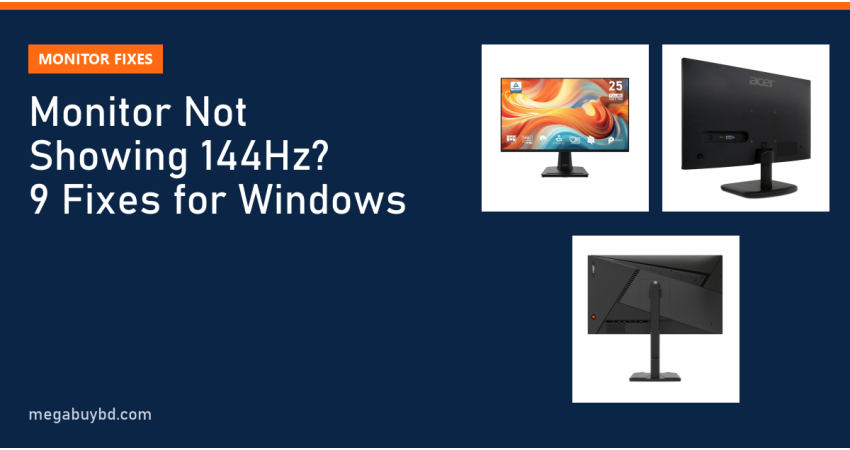
Monitor not showing 144Hz in Windows? Nine times out of ten it's one of two things: the cable is in the wrong port (VGA, or the motherboard instead of the graphics card), or Windows is still set to 60Hz. Both take a minute to fix. This guide is for anyone who just plugged in a new 144Hz monitor on Windows 10 or 11 and found the cursor feels exactly like the old screen. Start at the top and work down; most people are sorted by fix three.
Why a 144Hz Monitor Only Shows 60Hz
The monitor doesn't decide the refresh rate on its own. Your PC sends a signal, the cable carries it, and the monitor shows it. If any link in that chain can't handle 144Hz, Windows quietly falls back to 60Hz and doesn't tell you.
The usual suspects:
- Using the VGA port
- Plugged into the motherboard, not the graphics card
- Windows refresh rate never changed from 60Hz
- Missing or broken graphics driver
- An old cable, a cheap adapter, or a converter in between
- A laptop HDMI port that tops out at 60Hz
Fix 1: Check Which Port You're Using
Look at the back of the monitor. Is the cable in the blue VGA socket? That's your problem. VGA on these budget 144Hz monitors stops at 60 or 75Hz, full stop. No setting will push it higher.
Here's what our own monitors do on each port, from the manufacturer spec sheets:
| Monitor | HDMI | VGA | DisplayPort | Our price* |
|---|---|---|---|---|
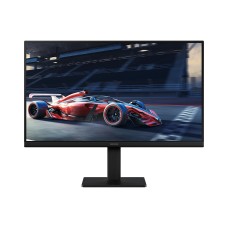
| MSI PRO MP251 E14L (24.5") | 144Hz (HDMI 1.4b) | 60Hz | None | 13,200 Tk |
| MSI PRO MP243L E14 (23.8") | 144Hz (HDMI 2.0) | 60Hz | None | 12,500 Tk |
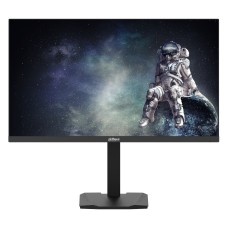
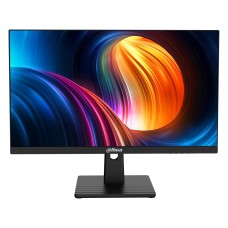
| Dahua LM24-A221Y (23.8") | 144Hz (HDMI 1.4) | 75Hz | None | 12,000 Tk |
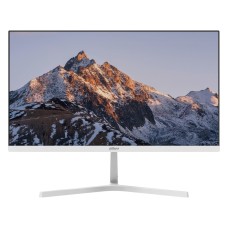
| Acer EK240Y P6 (23.8") | 144Hz | Not confirmed | None | 11,000 Tk |
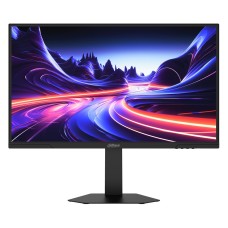
| Dahua LM27-E331AY (27" QHD) | 144Hz (HDMI 2.1) | None | 200Hz (DP 1.4) | 28,000 Tk |
*Prices at the time of writing. The product page shows the latest price.
Notice the last one. The Dahua LM27-E331AY 27 inch 200Hz monitor only reaches its full 200Hz over DisplayPort. Over HDMI it stops at 144Hz. So "my 200Hz monitor shows 144Hz" is the same problem one step up, and the fix is a DP cable.
On the other hand, a monitor like the MSI PRO MP251 E14L has no DisplayPort at all. HDMI is the only way to 144Hz there.
Fix 2: Plug Into the Graphics Card, Not the Motherboard
This one catches a lot of people with a new gaming PC. A desktop with a graphics card often has two sets of display ports: one on the motherboard (up near the USB ports) and one lower down on the graphics card itself. If the cable goes into the motherboard, you're using the processor's built-in graphics. Some older boards only give 60Hz at Full HD from there, and your games won't use the graphics card properly either.
Move the cable to the card's HDMI or DisplayPort. Then restart.
Fix 3: Change the Refresh Rate in Windows
Windows doesn't always switch to 144Hz on its own. Plenty of brand-new monitors sit at 60Hz for months because nobody checked.
Windows 11
- Right-click the desktop and choose Display settings.
- Scroll down and click Advanced display.
- If you have two screens, pick the right monitor at the top.
- Open Choose a refresh rate and select 144Hz.
Windows 10
- Right-click the desktop, then Display settings.
- Click Advanced display settings.
- Choose the monitor, then set Refresh rate to 144Hz.
On older Windows 10 builds, that dropdown may be missing. Click Display adapter properties, open the Monitor tab and set the screen refresh rate there.
Also check the resolution while you're there. It should be 1920 x 1080 (or 2560 x 1440 on a QHD monitor). Odd resolutions can hide the 144Hz option.
Fix 4: Use Your Graphics Control Panel
NVIDIA
Right-click the desktop, open NVIDIA Control Panel, go to Display then Change resolution. Pick the native resolution from the PC list and set the refresh rate to 144Hz. Click Apply.
AMD
Open AMD Software: Adrenalin Edition and go to the Display settings. Make sure the monitor is detected properly and turn on FreeSync if your monitor supports it. The refresh rate itself is usually set from Windows, as in Fix 3.
Intel
Laptop or office PC with Intel graphics only? Open Intel Graphics Command Center, go to Display and look for the refresh rate setting.
Fix 5: Install the Right Graphics Driver
Open Device Manager and expand Display adapters. If you see "Microsoft Basic Display Adapter", there's no proper driver installed. In that state you'll often get only 60Hz, sometimes a strange resolution too.
Download the latest driver from NVIDIA, AMD or Intel directly, install it, restart, and go back to Fix 3. Freshly installed Windows on a new PC is the classic case.
Fix 6: Swap the Cable, Drop the Adapter
Cables matter more than people think. An old HDMI cable from a set-top box, a very long cheap one, or one that's been bent at the plug for years can fail at 144Hz while working fine at 60Hz.
Adapters are worse. An HDMI to VGA converter puts you back on VGA, so expect 60Hz. Many cheap DisplayPort to HDMI adapters also struggle above 60Hz. If something sits between the PC and the monitor, try a straight cable first.
Use the cable that came in the monitor box if you still have it. MSI lists an HDMI cable in the box for both the MP251 E14L and the MP243L E14. If you need a longer one, we stock the Baseus HDMI 2.0 cable from 650 Tk (3m) at the time of writing.
Fix 7: Laptop HDMI Ports Have Limits
Connected a laptop? Its HDMI port may be the bottleneck. Some laptops, especially older or budget models, have HDMI outputs that only do 60Hz at Full HD. No Windows setting can change that.
Check the laptop's spec sheet for the HDMI version and maximum output. If it has a USB-C port with DisplayPort output and your monitor has DisplayPort, a USB-C to DP cable may get you the full refresh rate. Not sure? Send us the laptop model and we'll check.
Fix 8: Look at the Monitor's Own Menu
Press the button or joystick on the monitor and open the menu (the OSD). Many monitors show the current input signal there, including the refresh rate. That's a handy check that doesn't depend on Windows.
While you're in there, make sure the right input is selected, and if your monitor has an HDMI version or mode setting, set it to the highest option. Not every monitor has this. A factory reset from the OSD can also clear odd settings left from testing.
Fix 9: Games Have Their Own Setting
Windows says 144Hz but the game still feels choppy? Many games have their own refresh rate option in the video settings, and some default to 60. Also check that the game isn't capped at 60 fps and that your graphics card can actually push 100+ fps in that game. A 144Hz screen can't show frames your PC doesn't make.
How to Test If You're Really Getting 144Hz
Open TestUFO in Chrome or Edge with nothing else heavy running. It shows the frame rate your browser is running at, which follows the monitor's refresh rate. On a working 144Hz setup it should read 144, or very close. If it says 60, go back through the fixes above.
No internet handy? Drag a window around. At 144Hz it glides. At 60Hz you'll see it step.
How to Choose a 144Hz Monitor That Avoids This Headache
- Check your PC's outputs first. HDMI only? Any of the 144Hz HDMI monitors above will work. Got DisplayPort on your graphics card? A monitor with DP gives you more room later.
- Don't count on VGA. If you're stuck with a VGA-only office PC, a 144Hz monitor still works, but at 60Hz (75Hz on the Dahua LM24-A221Y).
- Above 144Hz, check the port. Higher refresh rates often need DisplayPort, like the LM27-E331AY at 200Hz.
- Match the GPU. Our graphics card buying guide helps if you're not sure your card can feed a high refresh rate.
Budget 144Hz picks we stock include the Acer EK240Y P6 at 11,000 Tk and the Dahua LM24-A221Y at 12,000 Tk. See every option in our monitor collection.
144Hz Monitor Price in Thakurgaon
Our 144Hz monitors cost the same in Thakurgaon as in Dhaka. We deliver all over Bangladesh, including Thakurgaon Sadar, Pirganj, Ranisankail, Baliadangi and Haripur, with cash on delivery. If your new monitor arrives and won't show 144Hz, call us before you assume it's faulty. It's almost always a setting.
Frequently Asked Questions
Why is my 144Hz monitor only showing 60Hz?
Most often the cable is in the VGA port or the motherboard instead of the graphics card, or Windows is still set to 60Hz. Move the cable to the graphics card's HDMI or DisplayPort, then open Display settings, Advanced display and choose 144Hz. If 144Hz still isn't listed, update the graphics driver and try another cable.
Can VGA run a monitor at 144Hz?
Not on the budget monitors we sell. The MSI PRO MP251 E14L and MP243L E14 limit VGA to 60Hz, and the Dahua LM24-A221Y to 75Hz. These limits come from the monitor itself, so no cable or setting changes them. Use HDMI or DisplayPort for 144Hz, and keep VGA for older office PCs.
Does HDMI 1.4 support 144Hz at 1080p?
It can, if the monitor is built for it. MSI rates the MP251 E14L's HDMI 1.4b port at 1920 x 1080 up to 144Hz, and Dahua does the same for the LM24-A221Y's HDMI 1.4. Your PC or laptop's HDMI output also has to support it, which some older laptops don't.
Is DisplayPort better than HDMI for high refresh rates?
For 144Hz at Full HD, HDMI works fine on the monitors listed here. DisplayPort matters when you go higher. The Dahua LM27-E331AY, for example, reaches 200Hz only over DisplayPort 1.4, while HDMI stops at 144Hz. If your monitor and graphics card both have DP, it's usually the safer choice.
Buy from Megabuy BD
We sell authentic monitors with official warranty where it applies, ship nationwide with cash on delivery, and Dhaka orders usually arrive in 24 to 48 hours. Not sure which port your PC has, or which monitor suits it? Message us a photo of the back of your PC and we'll tell you what will work.



There are no comments for this Article.