

Confused by SSD vs HDD vs NVMe when buying a laptop, building a PC or adding storage? This guide is for buyers in Bangladesh who want the right drive without paying for speed they will never use. The short answer: use an SSD, never an HDD, for Windows and apps. Choose NVMe if your laptop or motherboard has an M.2 NVMe slot, because it costs only a little more than SATA. Use a large HDD only for cheap bulk storage, backups and CCTV recording.
The Three Terms Explained Simply
Much of the confusion comes from mixing up drive type, connection and shape. Here is what each word really means.
HDD (hard disk drive)
Stores data on spinning magnetic platters read by a moving arm. Cheap per terabyte and available in big sizes, but slow to find small files, sensitive to drops and noisy. Common sizes are 3.5-inch for desktops and 2.5-inch for older laptops.
SSD (solid state drive)
Stores data on flash memory chips with no moving parts. Much faster, silent, lighter and far more resistant to knocks. "SSD" describes the storage technology, not the speed level.
NVMe
NVMe is a protocol that lets an SSD talk to the computer over PCIe lanes, the same high-speed lanes graphics cards use. An NVMe drive is still an SSD, just a much faster kind than a SATA SSD. So the real comparison is HDD vs SATA SSD vs NVMe SSD.
M.2 is a shape, not a speed
M.2 is the small stick-shaped form factor. An M.2 drive can be SATA (limited to about 550 MB/s) or NVMe (much faster). Two drives can look almost identical and perform very differently, so always read "NVMe" or "PCIe" in the product name and check which your slot supports.
SSD vs HDD vs NVMe: Side-by-Side Comparison
| Feature | HDD | SATA SSD | NVMe SSD |
|---|---|---|---|
| Typical sequential speed | About 80 to 200 MB/s | Up to about 550 MB/s | About 2,000 to 3,500 MB/s (PCIe 3.0), up to about 7,000+ MB/s (PCIe 4.0) |
| Small-file speed (boot, apps) | Very slow | Fast | Fastest |
| Form factor | 3.5-inch or 2.5-inch | 2.5-inch or M.2 | M.2 (desktop add-in cards also exist) |
| Noise and shock resistance | Audible, fragile when running | Silent, robust | Silent, robust |
| Cost per GB | Lowest | Medium | Slightly above SATA |
| Best use | Backups, media archive, CCTV | Upgrading older laptops and PCs | Boot drive for any modern system |
What the speed difference feels like
Going from HDD to any SSD is dramatic: boot drops from minutes to seconds and apps open without delay. Going from SATA SSD to NVMe is noticeable mainly when copying large files, loading big game levels or working with heavy video projects. For browsing and Office, most people cannot tell SATA and NVMe apart in daily use.
PCIe 3.0 vs 4.0 vs 5.0 NVMe
NVMe drives come in generations. A newer drive works in an older slot, but only at the older slot's speed.
- PCIe 3.0: up to about 3,500 MB/s. Found in most business laptops from roughly 2017 to 2020 and many budget motherboards.
- PCIe 4.0: up to about 7,000 to 7,500 MB/s. Common on Intel 11th gen and newer laptops, and on Intel B660/B760 and AMD B550/B650 boards (check which slots).
- PCIe 5.0: over 10,000 MB/s. Expensive, runs hot and only useful for specialist workloads today.
For most buyers, a good PCIe 3.0 or 4.0 drive is the value sweet spot. Spending extra on a Gen 4 drive for a Gen 3 slot gives no speed gain.
Prices in Bangladesh Right Now
In listings we checked at two major Bangladeshi computer retailers in late October 2026, a 512GB 2.5-inch SATA SSD cost roughly 7,200 to 9,500 taka and a 512GB M.2 NVMe SSD roughly 9,150 to 15,000 taka, with PCIe 4.0 models at the upper end. Storage prices change often, so compare on the day you buy.
How to Choose the Right Drive
For a laptop
- Has an M.2 NVMe slot: buy NVMe, 512GB minimum.
- Only a 2.5-inch bay: buy a 2.5-inch SATA SSD. It is still a massive upgrade over an HDD.
- Shopping for a used laptop: insist on an SSD. Our used laptops all ship with SSDs, for example the Dell Latitude 5400 Core i5 8th Gen with 256GB SSD at 26,900 Tk and the HP EliteBook 840 G8 with 16GB RAM and 512GB SSD at 44,900 Tk (prices at the time of writing; the product page shows the latest price).
For a desktop PC
- Boot drive: 500GB or 1TB NVMe in the motherboard's fastest M.2 slot.
- Games library: a second NVMe or SATA SSD.
- Photos, movies and backups: a large 3.5-inch HDD.
For CCTV and NVR recorders
Use a surveillance-rated HDD, such as WD Purple or Seagate SkyHawk. They are designed to record around the clock. SSDs are an expensive and unnecessary choice for most CCTV setups.
For portable storage and backups
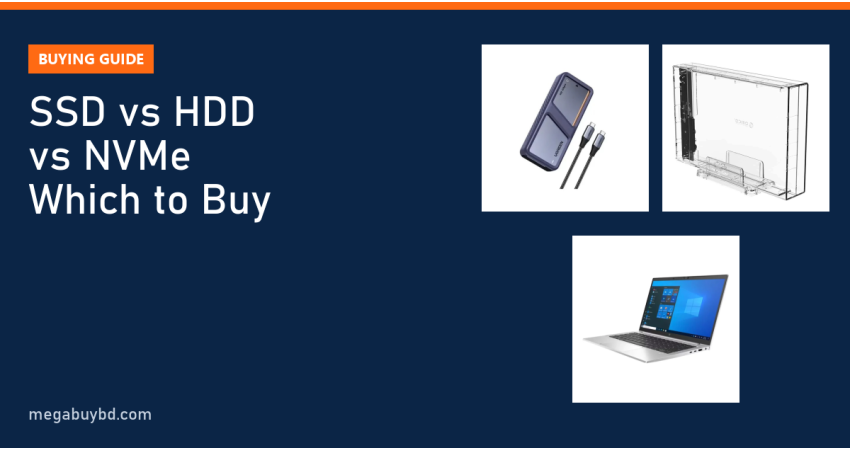
A spare drive becomes an external drive with an enclosure. The ORICO 3.5 Inch Hard Drive Enclosure (3159U3) at 1,700 Tk turns an old desktop SATA hard drive into USB backup storage, and the UGREEN D703 40Gbps M.2 NVMe Enclosure at 14,000 Tk makes a very fast portable SSD. More options are on our HDD-SSD enclosure page.
Common Mistakes to Avoid
- Buying an M.2 SATA drive for an NVMe-only slot, or the reverse.
- Choosing a drive that is too long (2280) for a slot made for 2242 or 2230.
- Using a cheap DRAM-less drive as the only drive for heavy video work, where sustained speed drops.
- Filling an SSD to 95%. Leave 15 to 20% free for speed and lifespan.
- Keeping the only copy of important files on any single drive. Back up.
How to Check the Health of Your Drive
Whether you use an HDD or an SSD, every drive eventually wears out. Checking its health once every few months gives you time to back up before a failure.
- Windows 11: open Settings > System > Storage > Advanced storage settings > Disks & volumes, choose the drive and open Properties. NVMe drives show estimated remaining life, available spare and temperature.
- Brand tools: most SSD makers offer a free utility that shows health, firmware updates and total data written.
- Warning signs on an HDD: clicking or grinding sounds, files that take very long to open, and frequent "Disk 100%" with nothing running.
If a tool reports warnings or reallocated sectors, copy your important files immediately and replace the drive.
Storage and Laptop Price in Thakurgaon
We deliver enclosures, SSD-equipped laptops and the rest of our range all over Bangladesh, including Thakurgaon Sadar, Pirganj, Ranisankail, Baliadangi and Haripur, with cash on delivery at the same price shown online.
Related Guides
- PC Build Price in Bangladesh 2026: Budget, Mid-Range and Gaming Builds
- DDR4 vs DDR5 RAM: Differences and How Much You Need
- Graphics Card Buying Guide Bangladesh: How Much PSU Do You Need?
- Monitor Buying Guide Bangladesh: What to Check Before You Buy
- Brand PC vs Custom PC: Which Is Better for Your Office?
Frequently Asked Questions
SSD vs HDD konta kinbo for a laptop?
Buy an SSD. For the drive that runs Windows and your apps, an SSD is the only sensible choice in 2026. It boots faster, survives drops better and uses less battery. An HDD only makes sense as a cheap second drive for large files, and most modern laptops do not have room for one.
Is NVMe worth the extra money over SATA?
If your device has an NVMe slot, usually yes, because the price gap at 512GB is small. You will notice it when copying large files, loading big games and editing video. If your laptop only takes 2.5-inch SATA drives, do not worry; a SATA SSD still feels very fast for everyday work.
Does an SSD lose data if left unplugged?
SSDs hold data well in normal use. Very long storage without power, especially in heat, can eventually cause data loss on some drives, so an SSD is not ideal as a cold archive kept in a drawer for years. For long-term archives, keep at least two copies, such as an HDD plus cloud storage.
Can I use an NVMe SSD on an old desktop without an M.2 slot?
Often yes, with a PCIe-to-M.2 adapter card in a free PCIe slot. Booting from it may need a BIOS that supports NVMe boot, which many older boards lack. In that case you can still use the NVMe drive for games and files, and keep a SATA SSD as the boot drive.
Buy from Megabuy BD
Megabuy BD sells authentic storage enclosures and tested used laptops that already have fast SSDs. We deliver nationwide with cash on delivery, and Dhaka orders usually arrive within 24 to 48 hours.



There are no comments for this Article.