

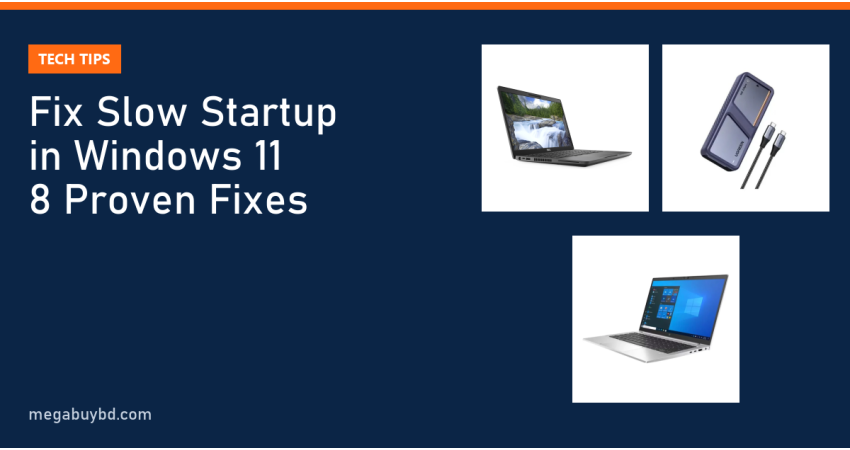
Does your PC take forever to reach the desktop? This guide shows how to fix slow startup in Windows 11 for laptop and desktop users in Bangladesh, from students on older machines to office staff who wait minutes every morning. The short answer: disable unneeded startup apps in Task Manager, finish any pending updates, test Fast Startup on and off, and make sure Windows is installed on an SSD. On an older laptop with a hard drive, moving to an SSD is the single biggest boot-time improvement you can make.
This article is only about the time from pressing the power button to a usable desktop. If your laptop is slow all the time, not just at startup, see our separate guide on fixing a slow or hanging laptop.
First, Measure Your Boot Time
Before changing anything, find out where the time goes. Startup has two parts: the firmware (BIOS/UEFI) checking the hardware, and Windows loading itself and your apps.
Check "Last BIOS time" in Task Manager
Press Ctrl + Shift + Esc to open Task Manager and click Startup apps. At the top you may see Last BIOS time, the seconds your PC spent in firmware before Windows started. A few seconds is normal. If it is much higher, the delay is in the BIOS settings or hardware, not Windows.
Check Windows boot duration in Event Viewer
For the Windows part, open Event Viewer and go to Applications and Services Logs > Microsoft > Windows > Diagnostics-Performance > Operational. Events with ID 100 record each boot's duration in milliseconds. Note the number, apply the fixes below, and compare after a few restarts.
Common Causes of Slow Startup
| Cause | Typical sign | Fix in this guide |
|---|---|---|
| Too many startup apps | Desktop appears, but stays unresponsive for a minute or more | Fix 1 |
| Windows on a hard drive (HDD) | Disk at 100% in Task Manager after boot | Fix 7 |
| Pending or stuck updates | "Working on updates" screen at every start | Fix 2 |
| Fast Startup problems | Shutdown-and-start is slower than a restart | Fix 3 |
| BIOS boot order or network boot | High "Last BIOS time", delay before the Windows logo | Fix 4 |
| Heavy background services or malware | Fans spin hard and sign-in takes long | Fixes 5 and 6 |
| Too little RAM | Memory usage near 100% right after boot | Fix 8 |
How to Fix Slow Startup in Windows 11: 8 Fixes
Fix 1: Disable startup apps you do not need
This is the quickest win. Many programs, such as chat apps, game launchers, cloud sync tools and printer utilities, add themselves to startup.
- Open Task Manager and click Startup apps.
- Sort by Startup impact. Look at anything marked High or Medium.
- Right-click apps you do not need the moment you sign in and choose Disable.
You can also do this in Settings > Apps > Startup. Disabling an app here does not uninstall it; you can still open it whenever you want. Leave your antivirus, touchpad and audio drivers enabled. To check apps added by shortcut, press Win + R, type shell:startup and remove shortcuts you do not want.
Fix 2: Finish pending Windows updates
If Windows shows "Working on updates" every time you start, an update is not completing. Go to Settings > Windows Update, install everything that is waiting, and choose Restart now. Let it finish fully, even if it takes a while. If an update keeps failing, run the Windows Update troubleshooter from Settings > System > Troubleshoot > Other troubleshooters.
Fix 3: Test Fast Startup on and off
Fast Startup saves part of the Windows system state to disk when you shut down, so the next start is quicker. On most PCs it helps, but on some it causes slow or unreliable boots, especially after driver updates.
- Open Control Panel > Hardware and Sound > Power Options.
- Click Choose what the power buttons do, then Change settings that are currently unavailable.
- Tick or untick Turn on fast startup and save.
Shut down and start the PC a few times with each setting and keep the faster one. If the option is missing, hibernation is turned off. Note that Restart always does a full boot, while Shut down uses Fast Startup when it is on, so restart the PC regularly to clear out the system state.
Fix 4: Check BIOS boot settings
If "Last BIOS time" is high, enter your BIOS or UEFI setup (usually by pressing F2, F10, F12, Del or Esc at power-on; check your laptop maker's guide). Then:
- Set Windows Boot Manager or your SSD as the first boot device.
- Disable network (PXE) boot if you do not use it; business laptops sometimes have it enabled.
- Enable any fast boot option the firmware offers.
- Remove USB drives and memory cards before starting, so the PC does not try to boot from them.
Change only settings you understand. If you are unsure, leave the BIOS as it is.
Fix 5: Find heavy background services with a clean boot
Some programs install background services that start before you even sign in. To test this, press Win + R, type msconfig, open the Services tab, tick Hide all Microsoft services and click Disable all. Restart and time the boot. If it is much faster, re-enable services in small groups to find the culprit, then uninstall or update that program. Return msconfig to Normal startup when you finish.
Fix 6: Scan for malware
Malware often loads at startup and slows everything down. Open Windows Security > Virus & threat protection > Scan options and run a Full scan. If you suspect something hidden, choose Microsoft Defender Offline scan, which restarts the PC and scans before Windows loads.
Fix 7: Move Windows to an SSD
If your PC still uses a hard drive, this is the fix that matters most. A hard drive has to physically seek thousands of small files during boot, which is why boot on an HDD can take a minute or more, while a decent SSD usually reaches the desktop in well under half that time.
To check your drive type, open Task Manager > Performance and click your disk; it shows SSD or HDD. If it says HDD, replacing it with an SSD and cloning your system is a straightforward job. Our SSD upgrade guide for old laptops explains which SSD fits and how to move Windows. A USB enclosure such as the UGREEN D703 M.2 NVMe enclosure (14,000 Tk) lets you connect the new SSD for cloning, and later turns the old drive into external storage. See more options on our HDD and SSD enclosure page.
If your PC already has an SSD and it has become slow to boot, check its health and free space. An SSD that is almost full or wearing out can slow down startup noticeably.
Fix 8: Add RAM if memory is full at startup
Windows 11 with a browser, antivirus and a few chat apps can fill 4GB of RAM straight after boot, and the PC then uses the drive as slow overflow memory. Open Task Manager after a fresh start and check Memory under Performance. If it is above about 80% with little open, upgrading to 8GB or 16GB will help. Our guide on laptop RAM upgrades: 8GB vs 16GB explains what fits your laptop.
How to Choose the Right Fix
- High "Last BIOS time": start with Fix 4.
- Logo appears fast, but the desktop is slow to become usable: Fixes 1, 5 and 6.
- "Working on updates" every time: Fix 2.
- Disk at 100% for minutes after boot: Fix 7.
- Memory nearly full right after boot: Fix 8.
- Still slow after everything: consider whether the hardware is simply too old for Windows 11.
When a Newer Laptop Makes More Sense
On very old laptops, an SSD and RAM upgrade may cost a large share of the laptop's value. A used business laptop that already has an SSD, a newer processor and 8GB or more of RAM often boots in seconds and costs less than you might expect. For example, the Dell Latitude 5400 Core i5 8th Gen with 256GB SSD is 26,900 taka at the time of writing, and our full range of used laptops all come with SSDs. The product page always shows the latest price.
Laptop Upgrade Price in Thakurgaon
Whether you need an enclosure for cloning or a complete replacement laptop, we deliver all over Bangladesh, including Thakurgaon Sadar, Pirganj, Ranisankail, Baliadangi and Haripur, with cash on delivery.
Related Guides
- CXMT DRAM Market Share Hits 10%: What It Means for RAM Prices
- What Is HBM Memory? High Bandwidth Memory Explained (2026)
- AMD Zen 6 12-Core vs Ryzen 9 9950X3D2: Rumours Explained
- Tesla Flying Roadster: What Was Shown and What's Next
- Nvidia RTX Spark Laptops: Nvidia Chips in Windows Laptops
Frequently Asked Questions
How long should Windows 11 take to start?
On a PC with an SSD and a reasonable number of startup apps, Windows 11 usually reaches a usable desktop in well under a minute, often in 10 to 20 seconds. On a hard drive, a minute or more is common. If your boot time is much longer than that on an SSD, startup apps, pending updates or BIOS settings are the likely causes.
Should I turn Fast Startup off in Windows 11?
Only if it causes problems. Fast Startup usually makes cold starts quicker, but on some PCs it leads to slow boots, driver glitches or dual-boot issues. Test both settings over a few shutdowns and keep whichever is faster and more reliable. Remember that choosing Restart always performs a full boot, whatever the setting.
Is it safe to disable all startup apps?
Mostly, but be selective. Disabling an app only stops it from launching automatically; it does not uninstall it. Keep your antivirus, touchpad, audio and graphics control utilities enabled, as some hardware features depend on them. Chat apps, game launchers, updaters and cloud sync tools are usually safe to disable and open manually.
Will an SSD really fix slow startup?
If Windows is currently on a hard drive, yes. Booting involves reading thousands of small files, which SSDs do many times faster than hard drives. It is the biggest single improvement for an older laptop. If you already have an SSD, the slowdown is more likely caused by software, so start with startup apps and updates.
Buy from Megabuy BD
Megabuy BD sells authentic storage accessories and tested used laptops with SSDs. We deliver nationwide with cash on delivery, and orders inside Dhaka usually arrive within 24 to 48 hours. Contact our team if you need help choosing an upgrade.



There are no comments for this Article.