

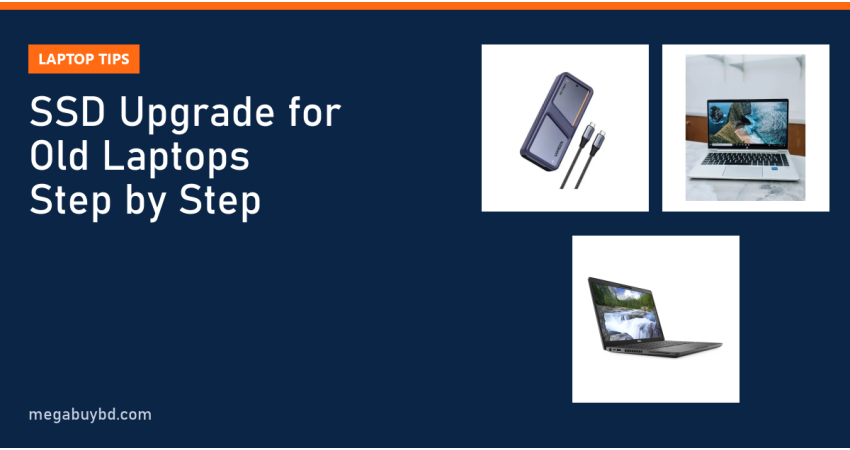
An SSD upgrade for an old laptop is the cheapest way to make a slow machine feel new again, and this guide is for anyone in Bangladesh still using a laptop with a mechanical hard drive. The short answer: if your laptop has an Intel 6th gen or newer processor (or a Ryzen chip) and still boots from an HDD, replace that drive with a 512GB SSD. Windows will start in well under a minute instead of several, apps open almost instantly, and the constant 100% disk usage disappears. Below is how to pick the right SSD type, move your data and avoid common mistakes.
Why an SSD Changes Everything
A hard drive reads data with a spinning platter and a moving arm. An SSD uses flash memory with no moving parts. The difference shows up most in small, random reads, which is exactly what Windows does when it boots or opens apps.
- Typical laptop HDD: around 80 to 120 MB/s, very slow random access.
- SATA SSD: up to about 550 MB/s, with random access many times faster than an HDD.
- NVMe SSD (PCIe 3.0): up to about 3,500 MB/s.
- NVMe SSD (PCIe 4.0): up to about 7,000 MB/s or more.
For an old laptop, even a basic SATA SSD gives the big jump. The extra speed of NVMe is nice, but the move from HDD to any SSD is what you feel every day.
Step 1: Find Out Which SSD Your Laptop Supports
There are three common types, and they are not interchangeable.
| Type | Looks like | Connection | Common in |
|---|---|---|---|
| 2.5-inch SATA SSD | Small flat box, same size as a laptop HDD | SATA | Laptops from about 2010 to 2017 with a hard drive bay |
| M.2 SATA SSD | Thin stick, usually with two notches (B+M key) | SATA through M.2 slot | Some 2015 to 2018 thin laptops |
| M.2 NVMe SSD | Thin stick, usually one notch (M key) | PCIe | Most business laptops from about 2017 onward |
How to check quickly
- Open Device Manager > Disk drives to see the current drive's model, then search it online to learn its type.
- Search your laptop's exact model number with "maintenance manual" on the maker's website. It lists supported drive bays and M.2 slot types.
- Open the bottom panel and look. Many laptops have both a 2.5-inch bay and an empty M.2 slot, which lets you keep the old HDD as a second drive.
An M.2 slot that only supports SATA will not run an NVMe drive, even though the stick fits. Also check the length: most laptops take 2280 (80mm), some take 2242 or 2230.
Step 2: Choose the Right Capacity
- 256GB: Windows, Office and a browser. Fills up quickly once you add photos or games.
- 512GB: the best balance for most users. Room for Windows, apps and several years of files.
- 1TB: for video editors, designers and gamers who keep large projects on the laptop.
Keep at least 15 to 20% of any SSD free. SSDs slow down and wear faster when nearly full.
SSD Upgrade for Old Laptop: Cost in Bangladesh
In listings we checked at two major Bangladeshi computer retailers in late October 2026, a 512GB 2.5-inch SATA SSD cost roughly 7,200 to 9,500 taka and a 512GB M.2 NVMe SSD roughly 9,150 to 15,000 taka. Prices move often, so treat these as a guide only.
Step 3: Clone or Fresh Install?
Cloning keeps everything as it is
Cloning copies your whole drive, including Windows, apps and files, to the new SSD. You need a way to connect the SSD to the laptop at the same time as the old drive. For a laptop with only one bay, that means a USB enclosure or adapter.
- For M.2 NVMe drives, an enclosure such as the UGREEN D703 40Gbps M.2 NVMe SSD Enclosure (14,000 Tk at the time of writing) lets you clone, then reuse the old drive as fast portable storage. Check the product page for drive compatibility.
- Browse all options on our HDD and SSD enclosure page.
Free tools that can clone include Clonezilla, and many SSD brands offer their own migration software for their drives. The new SSD must be at least as large as the used space on the old drive.
A fresh install is cleaner
If your old Windows is slow, full of junk or infected, a clean install is better. Back up your files, create a Windows installation USB with Microsoft's Media Creation Tool, fit the SSD, and install. Windows 10 and 11 reactivate automatically on most laptops that were activated before, because the licence is linked to the hardware.
Back up before you start
Whatever you choose, copy your documents, photos and browser passwords somewhere safe first. An old hard drive that is already slow may be close to failing.
Step 4: Install the SSD
- Shut down, unplug the charger and disconnect the battery if possible.
- Remove the bottom panel and ground yourself on a metal surface.
- For a 2.5-inch drive: remove the old HDD from its caddy, move the caddy screws to the SSD, and slide it into the SATA connector.
- For M.2: insert the stick at an angle, press it flat and fix it with the small screw.
- Close up, boot, and check the drive in BIOS and in Windows.
After a clone, make the SSD the first boot device in BIOS if the laptop does not pick it automatically.
How to Choose: Upgrade the Old Laptop or Replace It?
An SSD fixes slow storage. It does not fix a weak processor, a dim screen or a dying battery. Use this guide:
- Upgrade: Intel 6th gen or newer, or any Ryzen laptop, in good physical condition. Add 8GB or more RAM at the same time if you have 4GB.
- Think twice: Intel 3rd to 5th gen, Pentium or Celeron. An SSD helps, but the processor will still hold you back, and Windows 11 officially requires Intel 8th gen or newer.
- Replace: if the SSD, RAM, battery and repair costs together approach the price of a newer used laptop.
Ready-made alternative: laptops that already have fast SSDs
Our used business laptops come with SSDs fitted. These have 512GB, so you will not need to upgrade storage for a long time. Prices are at the time of writing; the product page shows the latest price.
| Model | Spec | Our price |
|---|---|---|
| HP ProBook 640 G8 | Core i5 11th Gen, 16GB RAM, 512GB SSD | 39,899 Tk |
| Lenovo ThinkPad T14s Gen 2 | Core i5 11th Gen, 16GB RAM, 512GB SSD | 43,900 Tk |
| HP EliteBook 850 G8 | Core i5 11th Gen, 16GB RAM, 512GB SSD, 15.6 inch | 47,900 Tk |
See every model on our used laptop page, and read our used laptop buying checklist before you pay for any second-hand machine.
SSD Upgrade and Laptop Price in Thakurgaon
Whether you need an enclosure for cloning or a ready-to-use laptop with an SSD, we deliver all over Bangladesh including Thakurgaon Sadar, Pirganj, Ranisankail, Baliadangi and Haripur. Cash on delivery is available, and the website price is the price you pay.
Related Guides
- Laptop Slow Hole Ki Korbo? 12 Fixes for a Slow or Hanging Laptop
- How to Check Laptop Battery Health (Windows, Mac and Linux)
- Laptop RAM Upgrade 8GB vs 16GB: How Much You Need and What Fits
Frequently Asked Questions
Can I put an NVMe SSD in a laptop that has a SATA hard drive?
Only if the laptop also has an M.2 slot that supports NVMe (PCIe). A 2.5-inch SATA bay cannot run an NVMe drive. Check the maintenance manual for your exact model. If there is no NVMe slot, a 2.5-inch SATA SSD still gives a huge improvement over the hard drive.
Will my files and Windows licence be lost?
Cloning keeps everything, including Windows and apps. A fresh install erases the new drive only, so your old HDD keeps its files until you wipe it. On most laptops, Windows activates automatically after a clean install because the digital licence is tied to the hardware.
Can I keep the old hard drive as extra storage?
Yes. If your laptop has a free M.2 slot, fit the SSD there and keep the HDD in its bay for files. Otherwise, put the old drive in a USB enclosure and use it as an external backup drive. Do not keep important files only on an old, slow HDD.
How long does an SSD last?
For normal home and office use, a decent SSD typically outlasts the laptop itself. SSDs are rated in terabytes written (TBW), and everyday users write far less than those limits. Keep some free space, keep backups, and check drive health occasionally with the maker's tool.
Buy from Megabuy BD
Megabuy BD offers authentic enclosures for cloning and backups, plus tested used laptops that already have fast SSDs. We deliver nationwide with cash on delivery, and Dhaka orders usually arrive within 24 to 48 hours.



There are no comments for this Article.